[home]   [news]   [products]   [for Treo]   [support]

RNS:: TopShortCuts

Software author: Radoslaw Nowak (RNS::)
Target platform: Palm OS
Target device: Treo and Centro

RSS channel - RNS:: TopShortCuts Overview of TopShortCuts 1.0RNS::
RNS:: TopShortCuts - icon TopShortCuts - Rediscover shortcuts - the feature that is missing on Treo phones!

Quick links:
Downlaod RNS:: TopShortCutsDownload the trial version
Buy RNS:: TopShortCutsBuy the full version
Version history for RNS:: TopShortCutsVersion history
Update policy for RNS:: TopShortCutsUpdate policy
RNS:: TopShortCuts - software screenshot
Shortcuts?RNS::

Sometimes you need to write a lot of repetitive information on your Palm device. For example, you may be writing your company name quite often, or you may be finishing every document with the same signature.

With ShortCuts you can define these texts once, and then insert them with a single command anywhere you want.

Unfortunately this important Palm OS functionality is hard to use on the Treo and Centro devices... unless you have TopShortCuts!

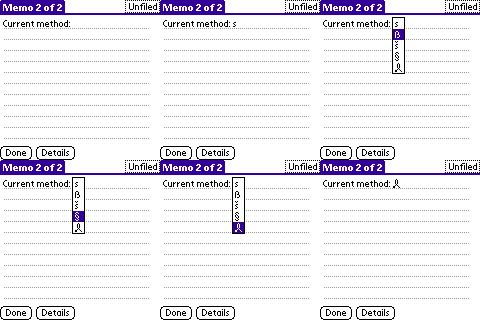
The traditional way of inserting the shortcut character
Shortcuts are back!RNS::

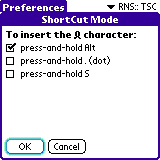
What RNS:: TopShortCuts does is insert the special Palm OS shortcut character (ShortCut) character. Depending on your preferences, this can be achieved with any of the following key combinations:

  • Alt press-and-hold
  • dot press-and-hold
  • S press-and-hold

The configuration screen of RNS:: TopShortCuts is available as a separate panel (labeled "RNS:: TSC") in the Palm OS "Prefs" application.

Please read below to learn how to make use of the Palm OS shortcut character character...

RNS:: TopShortCuts - the configuration screen
Defining your shortcutsRNS::

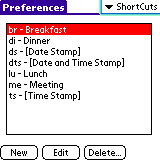
Before you can use shortcuts, you have to configure them. To do so, use the standard "ShortCuts" panel in the Palm OS "Prefs" application.

You may add, modify, and remove your shortcut definitions in this panel. Several shortcuts have been pre-defined for you.

On the devices that normally don't have the "ShortCuts" panel, it is automatically activated with the RNS:: TopShortCuts installation.

RNS:: TopShortCuts - the shortcuts configuration screen
Using your shortcutsRNS::

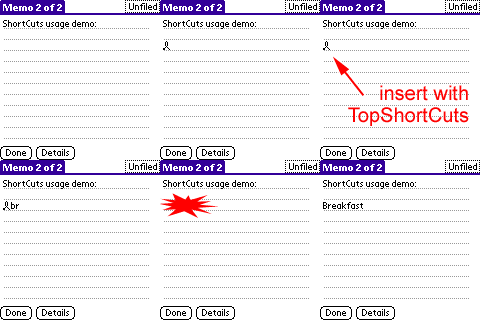
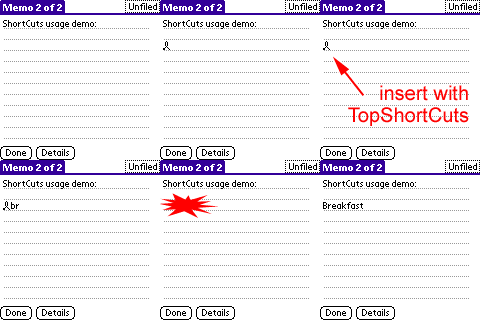
To apply a shortcut, insert the Palm OS shortcut character character followed by a defined shortcut text. For example, typing Palm OS shortcut characterbr will result in inserting the Breakfast text.

That's it!

RNS:: TopShortCuts - usage demo
TopShortCuts forumRNS::
Forum threadsClick here to read comments about TopShortCuts and to post your own messages.
Much more for your Treo or Centro smartphone!RNS::
So you have a Treo or Centro device... Great!
Visit the Software for Treo and Centro smartphones web site to discover all our applications for your phone!
[home]   [news]   [products]   [for Treo]   [support]   [updates]   [forums]
Palm, Treo, and Centro are trademarks or registered trademarks of Palm, Inc.
Copyright © 2009 RNS::

RNS:: website navigation:
RNS:: home page RNS:: news RNS:: Palm OS software RNS:: software for Treo smartphones RNS:: support RNS:: update policy